
PC gaming is not a single box with a fixed specification. It is a combination of hardware, operating system, game version and supporting services. That flexibility lets the same computer handle games, work and creative tools, but it also makes compatibility your responsibility.
The useful starting question is not “Is this a gaming PC?” but “Can this exact configuration run the games I want, in the way I want to play them?”
Start with games and a clear performance target
Make a short list of games that matter to you, including the most demanding one and any multiplayer title you play regularly. Read their current official requirements. A minimum specification is not a universal promise of smooth play: look for the resolution, graphics preset and frame-rate target attached to it.
If those details are missing, treat performance as unconfirmed rather than assuming that “minimum” means 1080p at 60 frames per second.
Separate three questions: whether a game starts, whether it remains responsive in demanding scenes, and whether it looks the way you want. Recommended requirements are a reference configuration, not a guarantee that every setting can be maximized.
Expansions, texture packs, mods and updates may change the workload. A requirement for an SSD, a particular graphics feature or a supported operating system is not interchangeable with simply having more memory.
Understand what each component contributes
These parts work as a system. A faster graphics card does not automatically resolve every slowdown, and adding memory is not a universal frame-rate upgrade. Cooling, power delivery and the particular game also matter.
For an existing computer, identify the exact components before deciding what limits it. In Windows, Settings → System → About provides useful system information; GPU and storage details need their own checks.
Check the operating system before the launcher
Windows 11 requires a compatible processor, TPM 2.0 and UEFI firmware with Secure Boot capability, among other conditions. Its 4 GB RAM and 64 GB storage minimums describe installation eligibility, not a gaming target.
Microsoft's PC Health Check can assess Windows 11 eligibility, but it is not a game-performance test. Standard Windows 10 Home and Pro support ended on 14 October 2025; a game continuing to launch does not establish that the operating system is still covered by ordinary support.
Do not treat every Windows computer as the same architecture. Windows on Arm can run many applications through emulation, but drivers and some games need specific support. Check the publisher's current position on the exact game, particularly when anti-cheat or specialist peripherals are involved.
On Linux, Proton can run many Windows games; Valve nevertheless documents game-specific anti-cheat configuration requirements. Neither “Windows compatible” nor “runs through Proton” is a blanket promise for a whole library.
A store, a launcher and a licence are different things
Steam, Epic Games Store, GOG and the Microsoft/Xbox ecosystem are routes to PC games, not interchangeable versions of the PC itself. A store handles distribution, a launcher manages access and installation, and the game's licence determines what you can use.
Some titles add a publisher account or separate launcher. Check those conditions on the particular edition rather than assuming that one account handles everything.
GOG describes its catalogue as DRM-free and GOG GALAXY as optional. That does not make operating-system support or every online feature universal. Likewise, Xbox Play Anywhere applies to participating digital games through supported Microsoft channels, not every game carrying an Xbox logo.
Cross-play, shared progress and access on another device are separate features: verify each one when planning to play with friends or move between machines. Check interface, subtitle and audio languages separately too.
Choose a format around where you actually play
A desktop usually offers more flexibility for replacing components and connecting equipment. A laptop combines the screen, keyboard and battery in a portable system, but its upgrade options can be narrower.
Examine the exact model's documentation: memory or storage accessibility cannot be inferred from its appearance. A small case does not tell you whether its parts are replaceable, and a familiar GPU family name does not make a laptop identical to a desktop configuration.
Describe your routine before describing the hardware. A fixed desk, a shared living room and frequent travel create different requirements for noise, space, controls and cable connections.
Include the monitor or television in the plan. Choose the resolution and refresh-rate target you intend to use, then judge game performance at that target rather than at a convenient lower setting.
Establish a baseline before changing things
Start with a supported game version, official drivers and a repeatable test scene. Note the resolution, preset and any upscaling or frame-generation settings. Comparing two frame-rate figures without matching these conditions can hide a substantial difference in image quality or responsiveness.
Change one setting at a time and keep notes so that an apparent improvement can be reproduced.
Distinguish a local performance problem from an online connection problem. Also check controls, audio, readable interface text and save behaviour, not only the frame counter. Before travel or a period without internet, test the game's actual offline mode rather than assuming that an installed game is independent of authentication.
The final checklist is short: exact games, exact hardware, supported OS and architecture, suitable storage, required accounts, preferred controls and a realistic performance target. A well-matched PC setup is one whose limitations you understand, not one that promises to run everything.
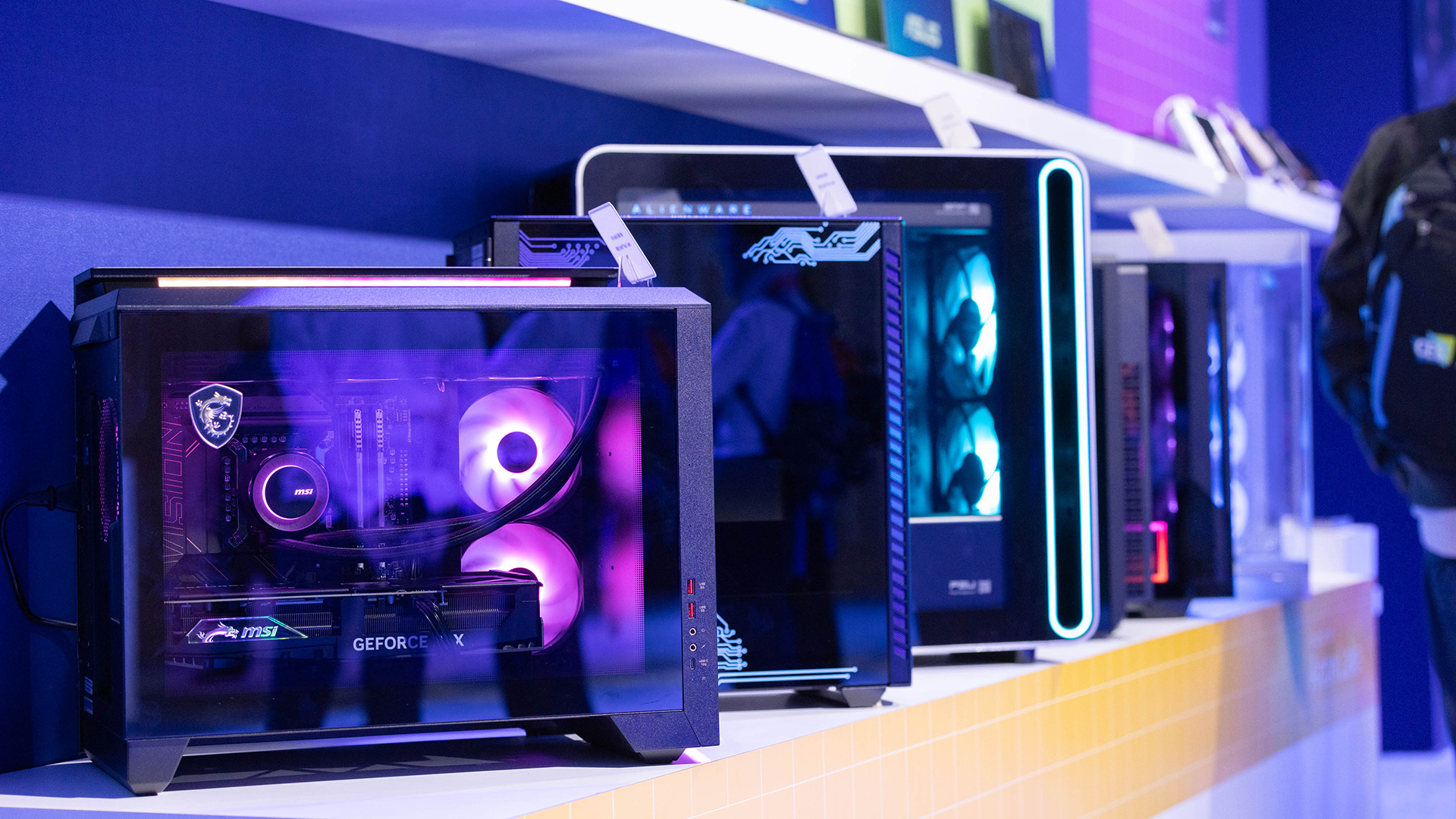
Desktop PCs at Intel’s CES 2025 showcase. Illustrative photo, not a recommended configuration. © Intel Corporation.
Comments