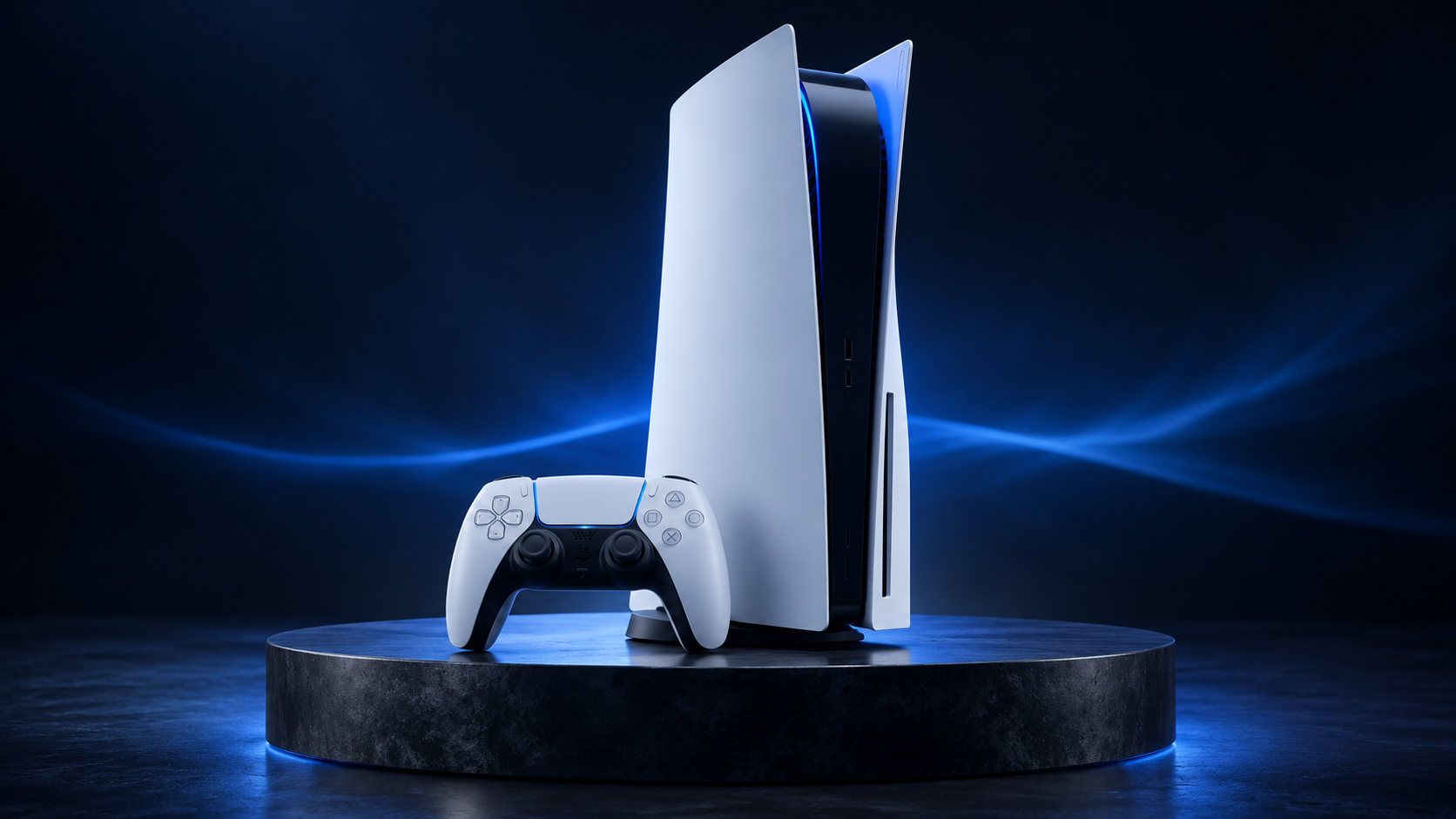
Running out of space on a PS5 does not automatically mean you need the largest drive available. First identify the actual problem: do you need more room for games that must launch immediately, or somewhere to keep a collection you are not currently playing?
An internal M.2 SSD and external USB storage serve different purposes. The SSD label on an external enclosure does not make it equivalent to a drive installed in the console's expansion slot.
Playable storage versus an archive
A compatible internal M.2 SSD can hold and run PS5 and PS4 games. USB extended storage can run PS4 games, but it only stores PS5 games. Before playing a PS5 title kept on USB, copy it back to console storage or a compatible M.2 SSD. Using an external SSD rather than a hard drive does not remove this restriction.
Think about your playing habits rather than capacity alone. If you regularly switch between several large PS5 games, additional playable space addresses the inconvenience directly.
If much of your collection remains untouched for months, separating active installations from an archive may be more useful. A substantial PS4 collection gives USB storage another clear role: keeping older games accessible without using space you would rather reserve for PS5 installations.
Check the complete M.2 specification
- Interface: PCIe Gen4 x4 NVMe, Key M. M.2 SATA is unsupported.
- Capacity: 250 GB to 8 TB. Supported sizes: 2230, 2242, 2260, 2280 and 22110.
- Recommended sequential reading speed: at least 5,500 MB/s.
- Effective cooling is required. Including cooling, maximum width is 25 mm and thickness is 11.25 mm: up to 8 mm above the board and 2.45 mm below.
Do not judge compatibility from the word NVMe or a packaging photograph. Compare the complete specification, including the heatsink dimensions. An advertised reading speed is not a promise of identical performance in every game.
Before installation, ask whether you have both an exact drive specification and clear instructions for your console model. Missing information is a reason to pause the preparation, not to experiment with a partly assembled console.
USB requirements and the right connection
USB extended storage requires SuperSpeed USB at 5 Gbps or better and a capacity between 250 GB and 8 TB. Connect directly rather than through a hub, and use only one extended-storage drive at a time. Sony does not guarantee every device will work, even when its headline specifications match.
Choose a SuperSpeed console port, not simply an available socket of the correct shape. Front-port arrangements differ between model groups, and USB-C alone does not establish connection speed.
Your model's port diagram is more useful than a blanket instruction to plug the drive into the front. Plan the cable route too: avoid a position where an ordinary movement beside the console could pull the connection loose.
A safer preparation sequence
Check for system software updates before starting. For M.2 installation, shut down completely, disconnect cables and allow the console to cool. Prepare a well-lit workspace and follow the official instructions for your CFI model group, because cover removal differs.
Discharge static electricity by touching grounded metal. Never operate the console with its cover removed or force an expansion-slot cover over an obstructing heatsink.
Formatting erases the selected drive's data. Before confirming, check the selected device and keep important existing files elsewhere. An M.2 being used with PS5 for the first time is formatted through the console's setup prompts.
For USB, open Settings, Storage and USB Extended Storage. A drive already prepared as extended storage for PS4 or PS5 normally needs no reformatting. Do not interrupt power or disconnect storage during formatting.
After preparation, move one game and check the outcome before reorganizing the entire collection. This is an organizational check, not a drive-speed benchmark. When removing USB storage from a running console, use its safe-removal option in Storage settings. Alternatively, shut down fully and wait until the power indicator is completely off.
Protect progress separately
Moving an installed game is not the same as backing up progress. Saved data is managed separately, including PlayStation Plus cloud synchronization for PS5 saves. Check synchronization status before a major library reorganization rather than assuming an enabled setting proves completion.
A console backup on an ordinary USB drive is also a separate process, not a feature of USB extended game storage.
The useful distinction is simple: M.2 expands your ready-to-play library; USB serves PS4 games and PS5 archives. Start with the games you actually want available, allow time for transfers, and keep installation management separate from save protection. That turns storage expansion into a deliberate arrangement rather than another drive that fills up without a plan.
Comments