A Windows game appearing in your library does not tell you whether it will run on your Mac. The useful question is not “Can Macs play games?” but “Where will this particular game run?” There are four different answers: directly in macOS, through a compatibility layer, on a cloud server, or on another computer you own. Start with the game, not with a promise that one application unlocks everything.
First, identify your Mac and the game edition
Open About This Mac and note the chip, memory and macOS version. Then check the exact game’s store page, including the macOS requirements, not just its promotional screenshots. A Mac release does not automatically support every Intel and Apple silicon model, and editions sold through different stores should not be assumed interchangeable.
For an older Steam purchase, inspect the compatibility notices carefully. Valve explains that macOS Catalina ended support for 32-bit Mac applications. An old Mac badge is therefore not enough to establish that a game works on a current machine. Treat memory, storage and supported operating-system versions as prerequisites rather than performance promises.
Native macOS: the starting point
A supported Mac version is usually the clearest first option because it avoids adding a Windows compatibility tool to the troubleshooting chain. That does not guarantee a particular frame rate. Choose settings for your actual hardware and the game’s requirements, rather than expecting a MacBook Air and a higher-end MacBook Pro to behave identically.
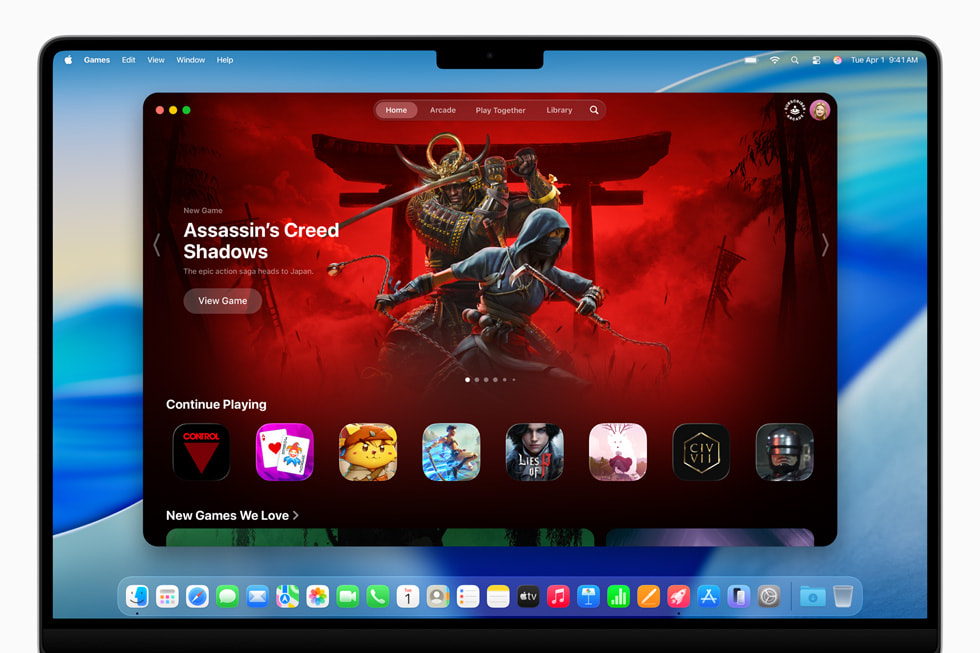
Apple’s Game Mode is a separate optimisation, not a Windows-game converter. Apple specifies an Apple silicon Mac, macOS Sonoma 14 or later, and a game using the supported macOS full-screen mode. Check that it is active where available, but do not mistake it for a solution to a missing Mac release.
Windows compatibility: check before paying
Wine-based tools translate the interfaces Windows software expects; they do not turn the game into a publisher-supported Mac edition. CrossOver packages this approach commercially.
Before buying, check the exact title in CodeWeavers’ compatibility database and compare the software and macOS versions involved. Its two-week trial is more useful than a general claim that a whole franchise works.
Match the installer to CodeWeavers’ current requirements table, especially on an older Mac. Requirements vary by CrossOver release; support for one combination should not be extended to a different operating-system beta.
Start with one game, change one setting at a time, and keep a note of the working configuration. A launcher opening successfully is not the same as completing a representative play session.
MaPC belongs in this compatibility category, not in the native-games category. Its current beta requires Apple silicon, macOS 15 or later and Rosetta 2. For its store integrations, graphics limitations and beta caveats, read our separate MaPC explainer. Do not select any compatibility tool on the assumption that multiplayer anti-cheat will work; verify the exact game and mode first.
Cloud gaming and your own PC are different options
Cloud gaming runs the game on a provider’s machines. Check that the service offers the exact game, store version and region you need before subscribing. As a reference, NVIDIA specifies 25 Mbps for GeForce NOW streaming at 1080p and 60 FPS, plus network latency below 80 ms to its data centre.
These are service requirements, not a guarantee for your connection. Test at the times you normally play.
Steam Remote Play instead streams from a computer running Steam, with a macOS Steam Link client available. Your host computer still runs the game; the Mac receives video and returns controls. This can make sense if you already own a suitable gaming PC. It is not a free cloud computer, and it does not remove the host’s hardware requirements.
A simple decision order
Check the supported Mac edition first. If none exists, investigate compatibility for the exact title before spending money. If that route is unsuitable, compare a verified cloud listing with streaming from your existing PC.
Before committing, test controls, saves, multiplayer and a normal-length session. This is a selection guide, not a benchmark: none of these routes should be treated as personally tested compatibility for an unnamed game.
Comments