What happened
On November 5, Microsoft opened testing of its refreshed PC app to Xbox Insiders. Its internal tests report launches up to 60% faster, with device-dependent results. The web rollout is gradual.
Changes cover the library, search and navigation; updates are also beginning on supported TVs and VR devices. This is an announcement and rollout start, not confirmation of availability for everyone.
Who should take a closer look
The most useful way to judge an interface update is through something you already do. If you mainly launch one installed game, the important questions are how quickly you reach its launch button and whether unnecessary steps get in the way. If you switch games frequently, check how easily you find a title and understand why you can access it.
For a large collection, make a small test list: a favourite installed game, a purchased game you have not opened recently, and a subscription title. This is an editorial testing suggestion, not a list of newly announced features. It can help establish whether the layout improves a familiar task or merely moves its controls around.
How to read the speed claim
The percentage in the announcement is not our benchmark result. Until the editorial team compares the same PC, account and network before and after the update, it should remain a manufacturer claim. Background downloads, system condition and familiarity with an old layout can all influence how fast an application feels.
For a useful personal comparison, measure application startup separately from completing a particular task. One example is the time between opening the app and finding a game.
Repeat each attempt several times and record the conditions. Do not mix a first launch after restarting the computer with an app that was already running in the background.
These are different scenarios. Consistency gives a more meaningful answer than one click and a first impression.
PC and cloud need different checks
Menu convenience and the quality of a gaming session should be assessed separately. A responsive interface does not itself demonstrate lower input latency or better streaming image quality. In a cloud session, check controller response in a familiar scene, fine-detail readability and stability over time.
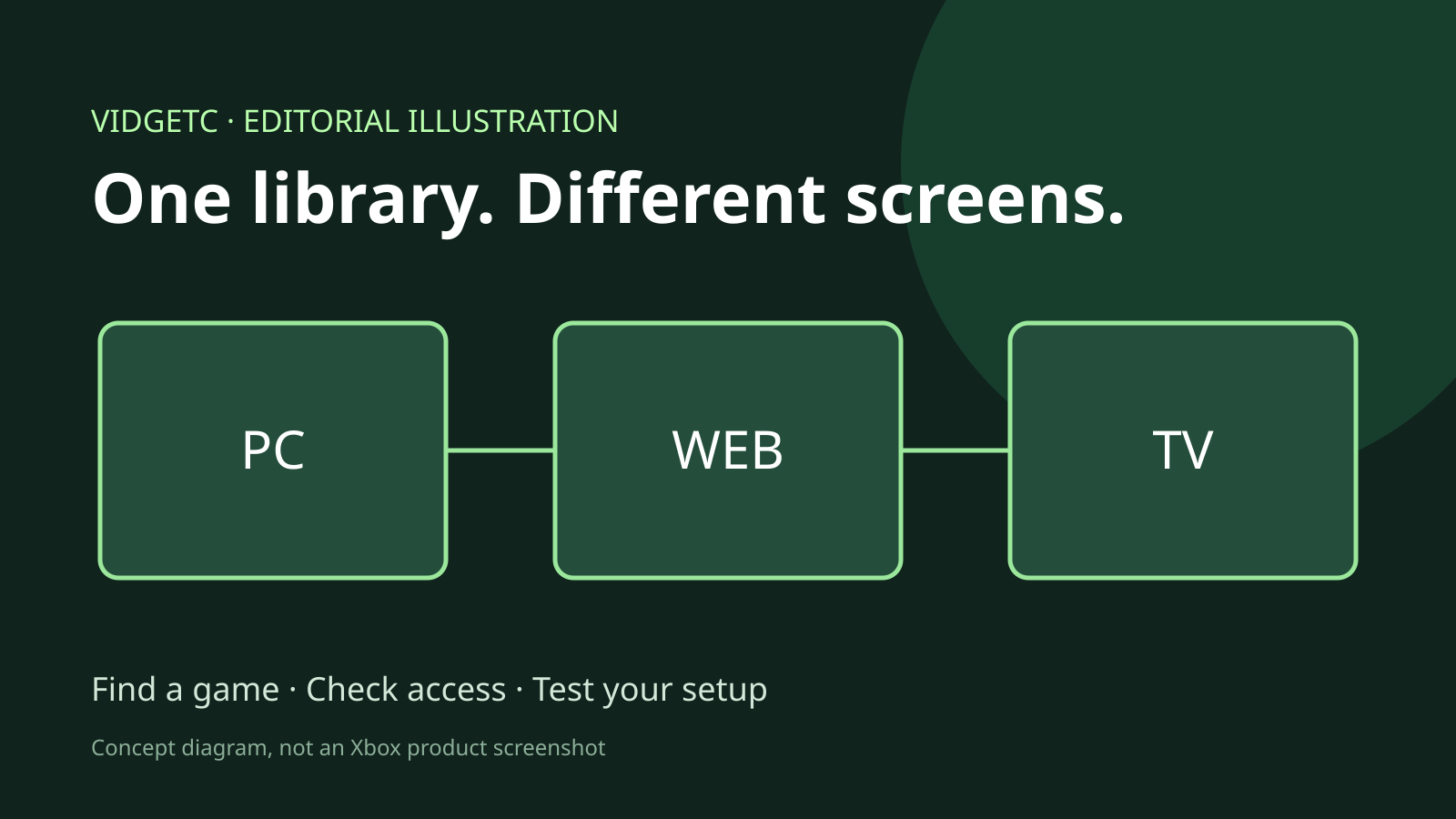
Do not infer access to an entire collection from one library screen. Open the specific game you intend to play, check access on your account and confirm support for your intended input method. If you play across several screens, repeat the check on each one. A successful launch on one device does not replace checking another.
Is there a reason to switch immediately?
If your present setup is reliable, our editorial recommendation is not to rush solely for a new appearance. Testing is more attractive if you are willing to document problems and evaluate changes. Before an important multiplayer session, avoid scheduling an experiment that could determine whether you join your friends on time.
Keep a short list of the problems you encounter in the existing experience. After updating, test those specific issues: finding the right game, understanding access and eliminating unnecessary actions.
That gives a practical answer about whether the new interface helps your particular routine. A definitive performance verdict needs independent testing. This article explains the announcement and offers a checking plan; it is not a hands-on review with original benchmarks.

Comments